Music Index
A downloadable tool for Windows
**Music Index** is your personal music database creator. Organize, browse, and share audio files stored on your computer across a VPN, private network, or local network with family and friends.
---
## Supported Formats
Music Index supports the following file formats:
`.mp3`, `.mp4`, `.webm`, `.aac`, `.ogg`, `.opus`, `.wav`, `.m4a`, `.3gp`, `.aiff`, `.au`, `.amr`
If your web browser does not support a particular format, the file will automatically be downloaded, allowing you to play it using another media player such as VLC Media Player.
Music Index also supports VLC playlists, which can be downloaded and opened directly in VLC Media Player.
---
## Additional Features
### Image Support
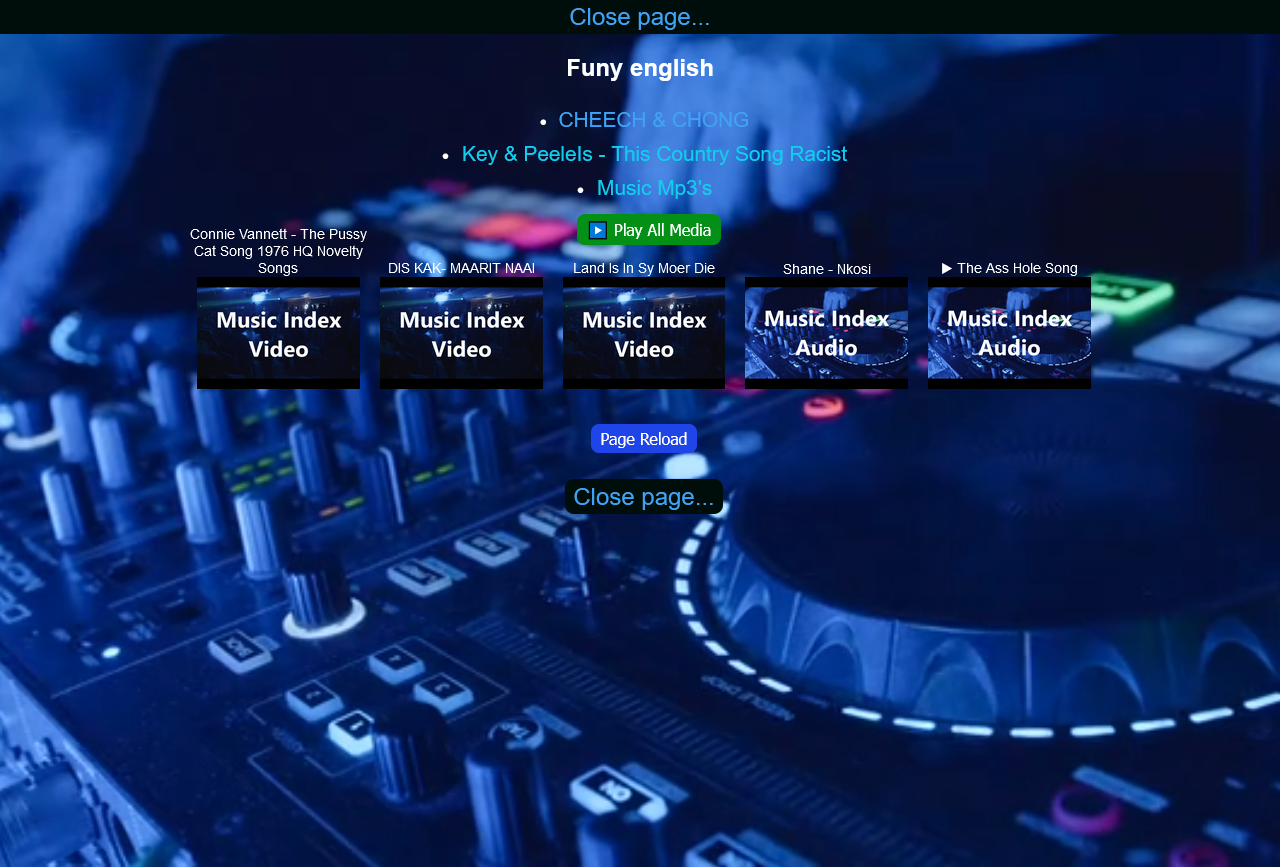
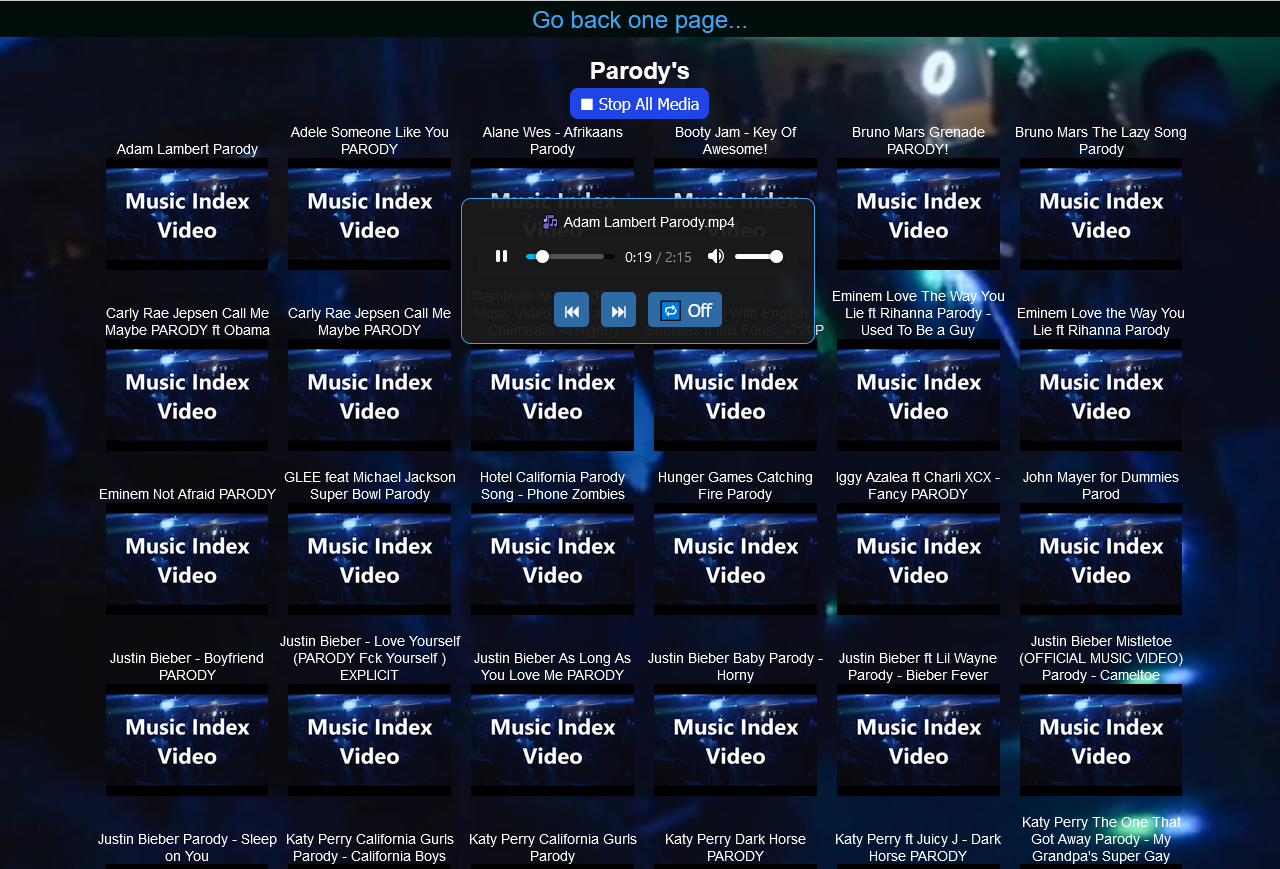
If you save an image with the same filename as an audio file, Music Index will automatically display it alongside the corresponding audio file.
Supported image formats:
`.jpg`, `.jpeg`, `.gif`, `.png`, `.webp`, `.bmp`
### Directory Structure Mirroring
The generated HTML structure mirrors your hard drive's directory structure, making navigation simple and familiar.
### Hidden Directories
You can exclude specific directories from Music Index by renaming them with the extension:
`_no or _private`
These directories will not be included in the generated index.
### Automatic Updates
Each time you start Music Index, you select the drive to index. The HTML network is then automatically created or updated.
Any changes to your directory structure or music files will be reflected the next time Music Index is launched.
### Enhanced Search
The search function is optimized to provide more results while requiring fewer characters to be entered.
### Network Messaging
A list of available networks is displayed.
Using a WebSocket extension for your web browser, you can send messages between the server and all connected clients.
### CleanIndex
The **CleanIndex** option completely removes the generated HTML structure when you no longer wish to use Music Index.
### Customization
You can easily customize:
* `styles.css`
* `background.mp4`
* All sound output files
This allows you to personalize the appearance and user experience of Music Index.
---
# Installation Instructions
### 1. Download
Download the Music Index package:
`MusicIndex.rar`
### 2. Extract
Extract the `.rar` archive using any compatible extraction tool.
### 3. Install
Run:
`MusicIndex Installer.exe`
with administrator privileges.
### Important
If the program closes immediately after opening through the shortcut, manually enable administrator privileges for the following files located in:
`C:\Program Files (x86)\Music Index`
Files:
* `CleanIndex.exe`
* `CleanUP.exe`
* `Music Index.exe`
---
# Running the Program
## Music Index Server (Host)
1. Double-click the **Music Index Server** icon or launch it using the shortcut.
2. Enter your VPN or localhost IP address and press **Enter**.
3. Enter the working directory where you want Music Index to be created.
### Note
Music files are only read from subdirectories within the selected main directory.
Example:
If `D:\` is selected as the main directory, all supported music files located within the subdirectories of `D:\` will be included.
4. Music Index will automatically open in your web browser.
---
## Music Index Visitors
1. Double-click the **Music Index Visitors** icon or launch it using the shortcut.
2. Enter the VPN or localhost IP address provided by the Host user and press **Enter**.
3. Music Index will automatically open in your web browser.
---
## Music Index CleanUp
1. Double-click the **Music Index CleanUp** icon or launch it using the shortcut.
2. The following prompt will appear:
`"Do you want to clean up the Music Index immediately? (Y/N)"`
### If You Select "No"
The CleanIndex Server will automatically start after 20 seconds, allowing you to initiate the cleanup process from within Music Index.
### Options
* Press **Y** for Yes.
* Press **N** for No.
### Note
CleanUp can only be used by the Host user.
It always uses the most recent directory path that was used to create the Music Index.
---
# Creating and Playing Playlists
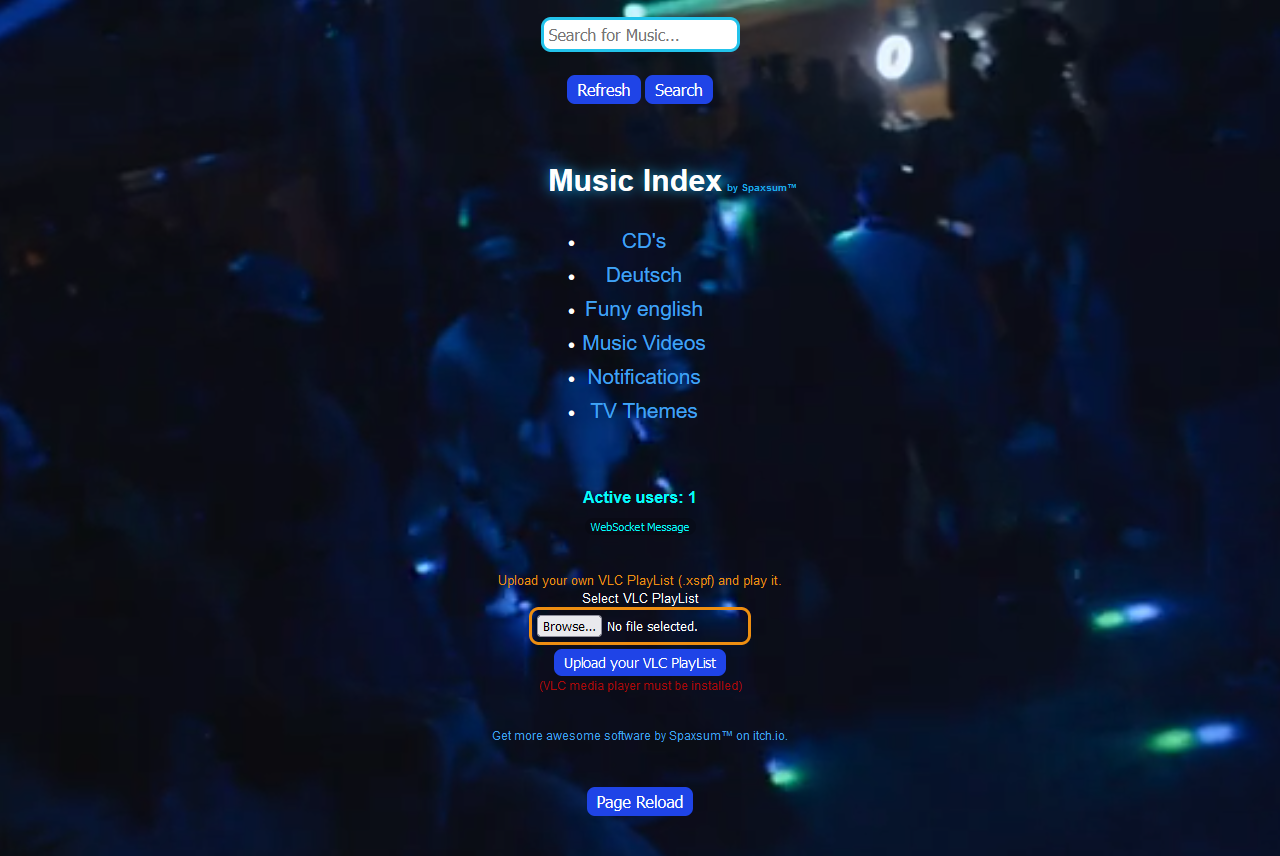
Music Index supports VLC playlists, allowing you to play your existing music collections directly through the application.
### Uploading a Playlist
1. Click the **Browse** button.
2. Select your playlist file (`.xspf`).
3. Click **Upload Your VLC Playlist**.
### Playing the Playlist
1. After the upload is complete, a download will automatically begin in your web browser.
2. This process typically takes between 2 and 4 seconds.
3. Click the downloaded file in your browser to open it with VLC Media Player and begin playback.
### Important Notes
* The downloaded playlist file is only used as a launch file for VLC Media Player.
* The downloaded file is automatically removed from your Downloads folder after 10 seconds.
* If the file is deleted before you open it, simply repeat the upload process.
* Playlist files must use the `.xspf` extension.
---
## Enjoy Music Index
Enjoy creating, organizing, and sharing your online music collection with Music Index.
Thank you for using Music Index!
---
## Feedback
For feedback, feature requests, or suggestions, please visit:
https://onlyregistered.github.io/appfeedback/
---
Download
Install instructions
Music Index Package Installation Guide
Step 1: Download the Music Index Package
Download the Music Index.rar file.
Step 2: Extract the Files
Use a RAR extraction tool to unpack the downloaded file.
Make sure you have Node.js installed on your system.
Step 3: Install the Program
On your first run, execute Music Index Installer.exe with administrator rights.
After that, run node_manager.exe located in:
C:\Program Files (x86)\Music Index\
⚠️ Important:
If you have not started Node Manager at the end of the Music Index Installer, make sure to run it manually.
Manage Node.js Installation
To fix or uninstall Node.js, run:
node_manager.exe
located in:
C:\Program Files (x86)\Music Index\
Troubleshooting
Program Shortcut Issues
If you encounter issues when opening the program via the shortcut, close it without displaying any errors.
Administrator Rights Issues
If you experience administrator rights issues, navigate to the installation directory:
C:\Program Files (x86)\Music Index
Then set administrator rights for the following files:
Music Index Server.exe
Music Index Visitors.exe
CleanIndex.exe
Development log
- Music Index v1.1Aug 31, 2025
Leave a comment
Log in with itch.io to leave a comment.